A practical text box guide
Make a text overlay once. Use it across your videos.
Write a short caption, choose a readable style, and export a transparent PNG for TikTok, Instagram Reels, YouTube Shorts, or a presentation.
Write your text
Click the text in the preview and type directly, or select Edit text to place your cursor there. There is no separate text-editing dialog. Enter up to 500 characters and press Enter to create a new line. Longer lines wrap automatically at your selected width. The editing area grows vertically, so the entire caption remains visible without an internal scrollbar.
The starting example is “Create your custom text box.” Replace it with a hook, a short quote, or an explanation for your video. Blank text disables downloading. Emoji are supported, though their appearance depends on your operating system. Character counting follows browser text length, so some emoji use more than one character.
Choose a text style
The A icon in the toolbar cycles through four styles and changes its appearance to match the selected effect. Open Settings → Style to select one by name.
| Style | Appearance |
|---|---|
| Line highlight | A rounded colored background behind each line, sized to its text |
| Solid box | One rounded rectangle behind the complete caption |
| Outlined text | Text with a contrasting stroke and no filled background |
| Text only | Plain text on a transparent canvas |
Click the second toolbar button, the color wheel, to reveal the quick color palette below the preview. Click it again to hide the palette. In Line highlight and Solid box, it changes the background. In Outlined text and Text only, it changes the text. For custom background, text, and outline colors, open Settings → Colors.
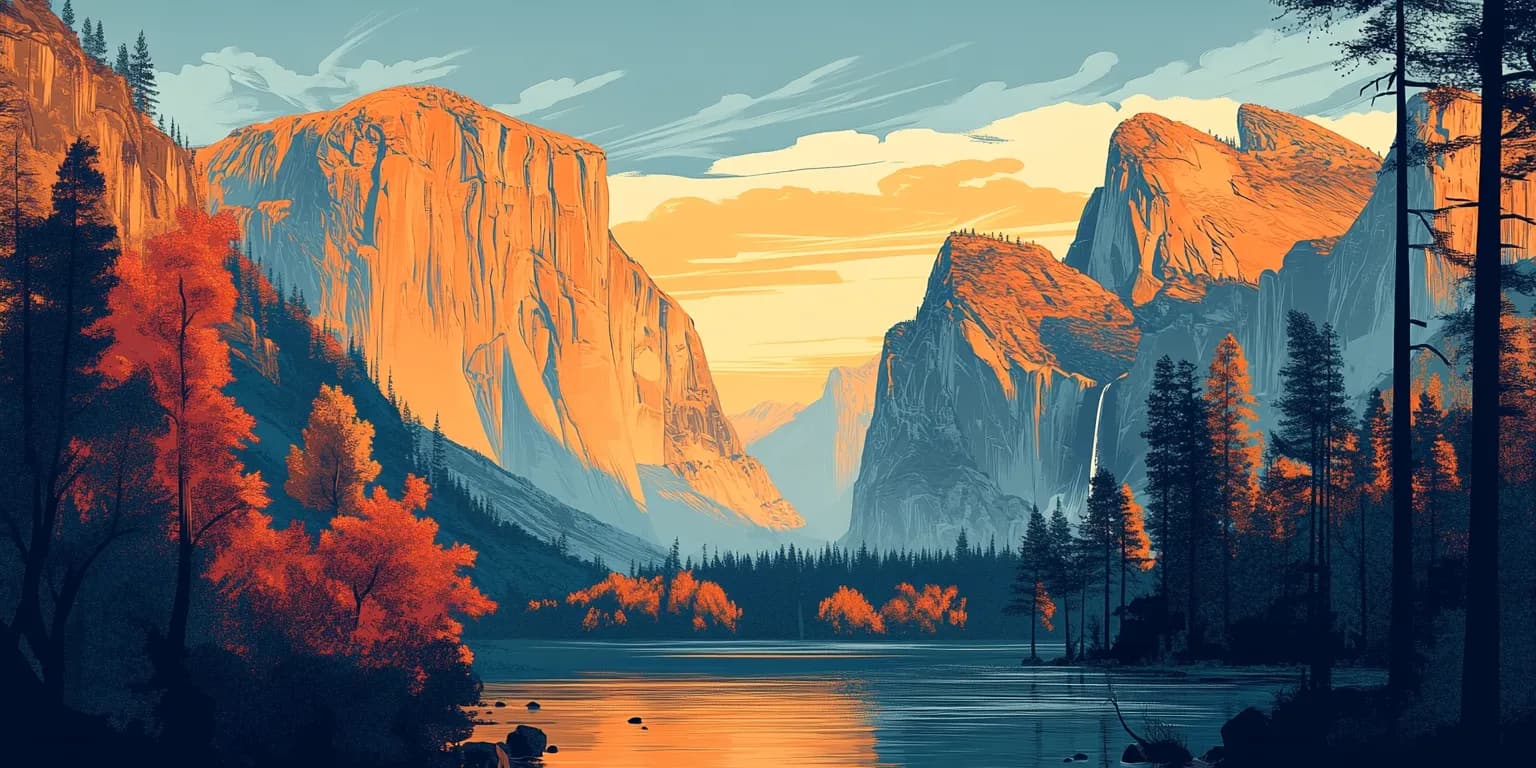
Filled styles automatically choose black or white text for better contrast. Turn off Automatically choose readable text color to set your own combination. The landscape is only a preview backdrop; it never becomes part of the exported image. The picture icon switches between the landscape and a checkerboard so you can inspect transparency.
Adjust typography
The alignment button cycles through left, center, and right. The settings button slides open a settings panel to the right of the main preview, keeping your text visible and editable as you make changes. On narrow screens, the panel expands below the preview. Click the settings button again or use the close button to collapse it. In its Style tab, choose the alignment directly, select a font weight from Regular to Extra bold, and adjust the following settings:
| Setting | Range |
|---|---|
| Font size | 16–72 pixels |
| Wrap width | 160–640 pixels |
| Line height | 1.1–1.8× |
| Padding | 4–24 pixels |
| Corner radius for filled styles | 0–20 pixels |
Choose Inter, Arial, Verdana, Georgia, Times New Roman, or Courier New from Font family in the Style tab. Inter is the default. Your selection applies to both the editable preview and exported PNG, and is saved with your draft. The other fonts use your device's installed fonts with similar fallbacks when unavailable, so their appearance can vary between devices. The website interface font is unchanged.
Wrap width controls when text breaks; short lines keep the downloaded image compact. Alignment is visible when lines have different lengths. Padding adds room around the text, and line height adjusts the distance between lines while allowing enough room for tall glyphs.
Reset restores the original text, colors, and settings. Undo reset brings back your previous version during this visit.
Download a transparent PNG
Select Download to see the finished artwork on a checkerboard. The desktop dialog places settings on the left and the complete preview on the right. Choose Standard 2×, High 3×, or Ultra 4×, then select Download PNG.
The dialog shows the actual pixel dimensions. They depend on your text, font, padding, and line breaks. A 3× export multiplies both the base width and height by three. The PNG includes a small transparent margin to protect text edges and outlines. It contains only the text and selected style, with no landscape, checkerboard, controls, or added watermark.
Import the PNG into your video editor as an image overlay. Place it above your footage, resize it, and set its duration. You can reuse the same image in TikTok, Reels, Shorts, slides, or any editor that supports PNG transparency. This generator exports a static image, not a video, animation, or subtitle file.
Very long captions or many blank lines can exceed browser canvas limits. If an error appears, shorten the text or select a lower resolution. For a comment reply overlay, try the TikTok Comment Generator. For a Reddit story card, try the Reddit Post Generator.
Drafts and privacy
Auto-save stores the text, colors, style, alignment, typography, preview background preference, and export resolution in this browser when storage is available. Save draft writes manually. Turning auto-save off stops automatic writes for this visit but does not erase an earlier saved draft.
The editor reports when a draft remains only in memory because storage is blocked or full. Drafts do not sync between devices. Clear this website's browser storage to remove saved content. Text rendering and PNG creation happen in your browser; your caption is not sent to an application database. Hosting and analytics are described in our privacy policy.
Common questions
Is the text box generator free?
Yes. Create and download a transparent text PNG without an account, payment, or watermark.
Can I make a text box with no background?
Choose Text only or Outlined text. These styles export without a filled rectangle. Filled styles still keep the area outside the colored box transparent.
Why does the downloaded image look white in my image viewer?
Some viewers display transparency on white. White text without a filled background can blend into that display. Place the PNG over colored footage or use a checkerboard viewer to see the transparent areas.
Does the image include the landscape?
No. The landscape helps you judge your caption over a scene. Only the text artwork is exported.
Will it work in my video editor?
It works in editors that accept PNG images with an alpha channel. Import it as a visual overlay. Fake Generator is independent and is not affiliated with TikTok, Instagram, or YouTube.